
IDPhotoSize
Official ID Photo Resizer — Free, instant & private. Your photo never leaves your device.
Give your photo the identity it deserves!
Select photo size
Drop your photo here
or click to browse — JPG, PNG, WEBP
Your photo never leaves your device
100% Private
No uploads — everything runs on your device
30+ Photo Sizes
US, UK, Canada, India, Singapore passports, visas, and more
AI Face Centering
Auto-detects and centers your face for a perfectly aligned photo
AI Photo Analysis
Checks eyes, expression & head position — with hints to fix issues before you submit
AI Background Removal
Remove and replace your background on-device
Print-Ready Layout
Tile copies onto A4 or Letter for printing
Fit Any Upload Limit
Reduce file size from 20 KB to 2 MB — meets any portal file size requirement
No Signup Required
No account, no email — just open and use it
Instant Results
Photo ready in seconds — all processing happens on your device
Your Photo, Done Right
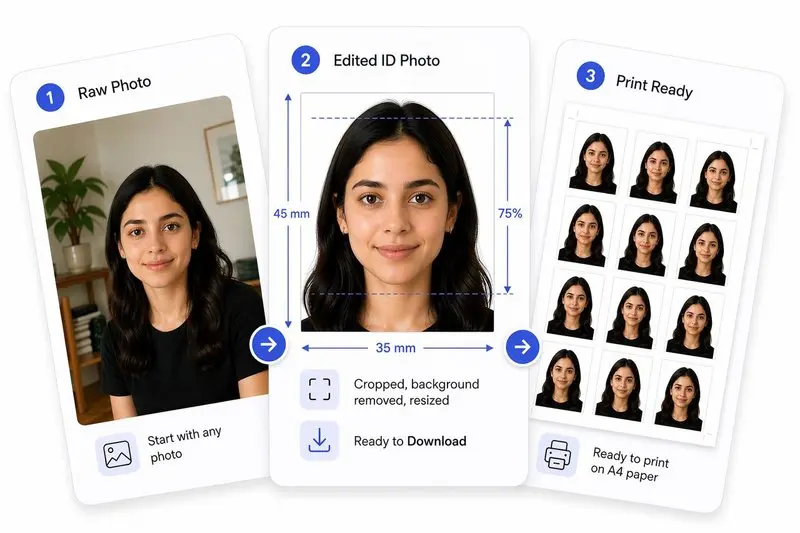
Prepare Your Photo in 3 Steps
Upload Your Photo
Upload any photo — we'll detect your face automatically.
Adjust in One Tap (or Fine-Tune)
Use Auto Ready to quickly centre, align, crop, and clean the background. Prefer more control? Adjust everything yourself anytime.
Download & Use Anywhere
Download your photo for online use, or arrange it on a sheet for easy printing.
Choose a photo size — select your document type (e.g. US Passport, Schengen Visa) or enter custom dimensions.
Upload a photo — drag and drop or click to select from your device.
Auto Ready appears in the toolbar once a face is detected. Tap it to automatically centre your face, straighten to your eye line, apply the crop, and remove the background — all in one tap.
OR, Fine-tune the crop — drag and position the photo, use Center Face to auto-position, Straighten to align to your eye line, and click Apply. You can also use Extend Background to fill any gaps, and Remove Background after applying.
Check the Photo Analysis panel — it shows whether your eyes are open, expression is neutral, and head is straight, with hints to correct any issues.
(Optional) Change the background colour — after removing the background, pick any colour or keep it white for official documents.
(Optional) File size & format — target a specific file size or choose JPEG, PNG, or WebP output.
Download your photo — or use Print Layout to tile copies onto A4 or Letter paper for printing.
A free tool that crops, resizes, and compresses photos to official passport, visa, and ID dimensions. No data is uploaded — everything runs on your device.
Yes, completely free with no hidden costs, watermarks, or sign-ups.
No. Your photos are processed entirely on your device and never leave it.
Auto Ready appears in the editor toolbar once a face is detected in your photo. Tap it for a one-step pipeline — face centering, straightening to your eye line, crop, and background removal, all automatic. You can watch each step complete in real time.
Yes. The tool includes AI-powered background removal that runs on your device. You can replace the background with white or any colour.
Choose "Custom size" and enter your own width, height, and DPI values in millimetres, centimetres, inches, or pixels.
Absolutely. Just upload the photo from your phone's gallery. The tool handles cropping and resizing to the exact dimensions required.
Simple Mode uses a lightweight AI model (~1 MB) that runs almost instantly on any device (including older mobile phones). It is great for clean edges and straightforward photos. High Quality Mode uses a larger, advanced AI model (~26 MB) to capture fine details like individual hair strands and handles complex or cluttered backgrounds much better. It takes slightly longer to process.
Use High Quality (default) if your photo has loose hair, complex patterns in the background, or if you need professional-grade edges. Use Simple if you are on an older mobile device that struggles with memory, if you have a slow internet connection (since it doesn't need to download the larger model), or if you are wearing headgear/glasses where clean, sharp geometric edges are preferred.
You can toggle between them using the floating image icon button located at the bottom-right corner of the editor canvas (right above the face markers button) or within the background removal card. Clicking the button will switch modes and show a brief notification (e.g. "High quality background removal active" or "Simple background removal active") confirming the change.
If the High Quality mode fails due to device memory constraints or browser limitations, the tool will automatically fall back to the Simple mode, ensuring you still get a background-removed photo without any disruption.
Browse ID Photo Size Guides
View all toolsSelect your country or use case — the tool will pre-load the correct dimensions automatically.
Passport Photos by Country
US Passport Photo
2×2 inch (51×51 mm)
UK Passport Photo
35×45 mm
India Passport Photo
35×45 mm
Canada Passport Photo
50×70 mm
Australia Passport Photo
35×45 mm
UAE Passport Photo
40×60 mm
Germany Passport Photo
35×45 mm
France Passport Photo
35×45 mm
Japan Passport Photo
35×45 mm
South Korea Passport Photo
35×45 mm
Singapore Passport Photo
400×514 px (ICA)
Pakistan Passport Photo
35×45 mm